
Adding others is part of a 3-Way Conference call. When you start a call, turn on Add a 3rd party — then, once you’re connected, you can bring people in three ways: a join link, an emailed invite, or a phone number.
Start a 3-Way Conference call
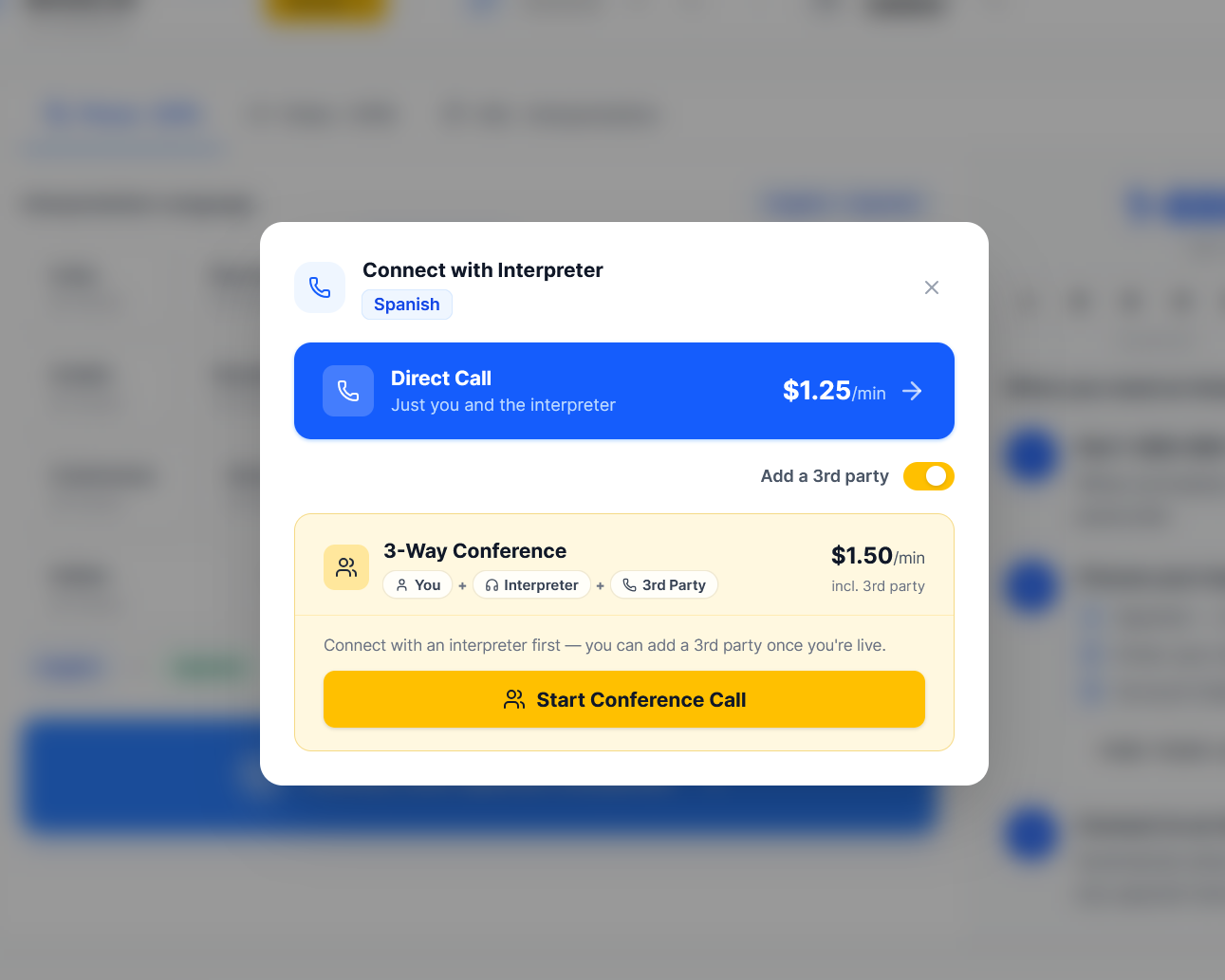
Turn on 3rd party- Go to your dashboard at app.dayinterpreting.com and click Connect with Interpreter.
- Select your language, then switch on the Add a 3rd party toggle. The call changes from a Direct Call to a 3-Way Conference (You + Interpreter + 3rd Party).
- Click Start Conference Call. Your interpreter connects automatically and the conference screen opens.
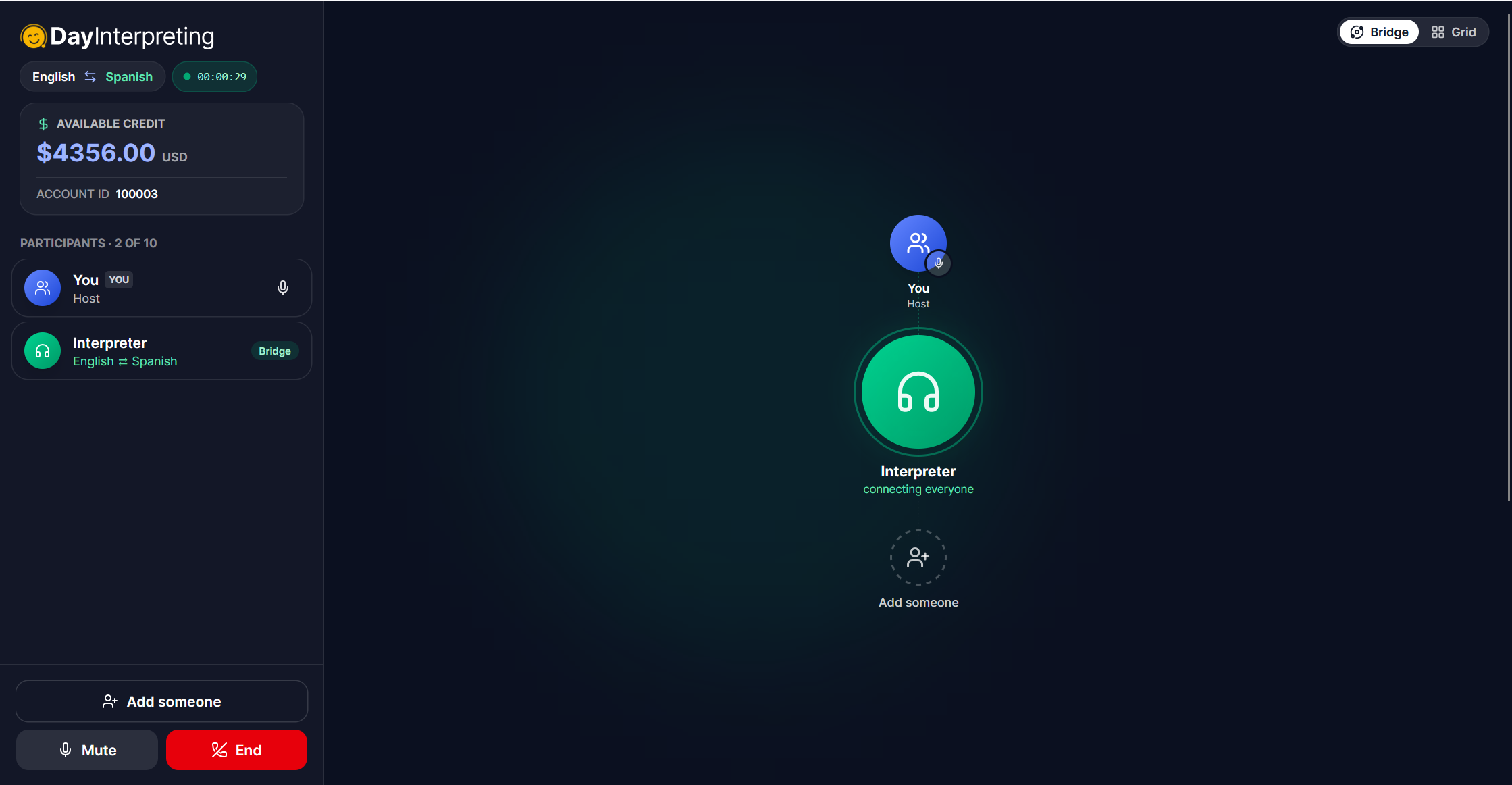
Your conference screen
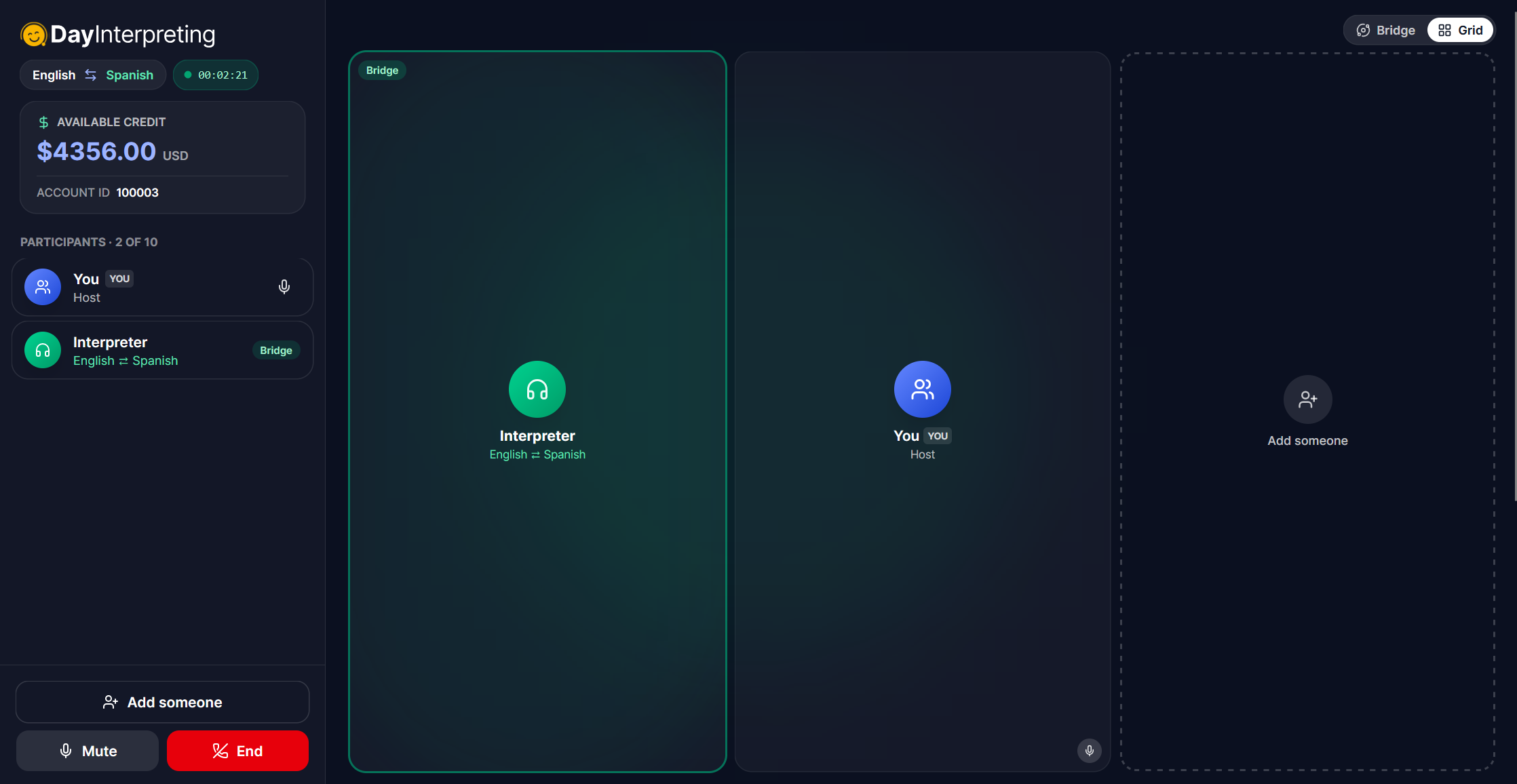
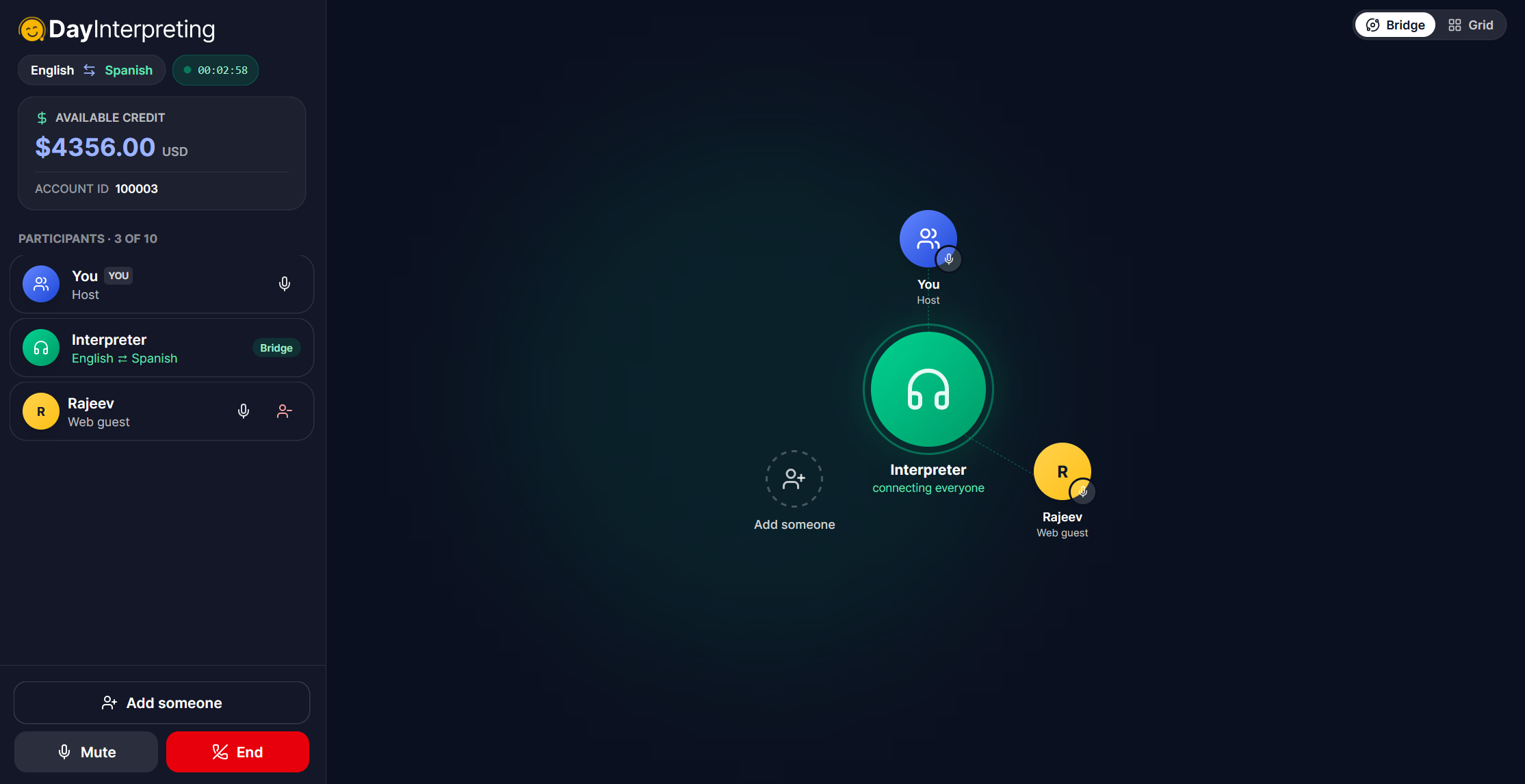
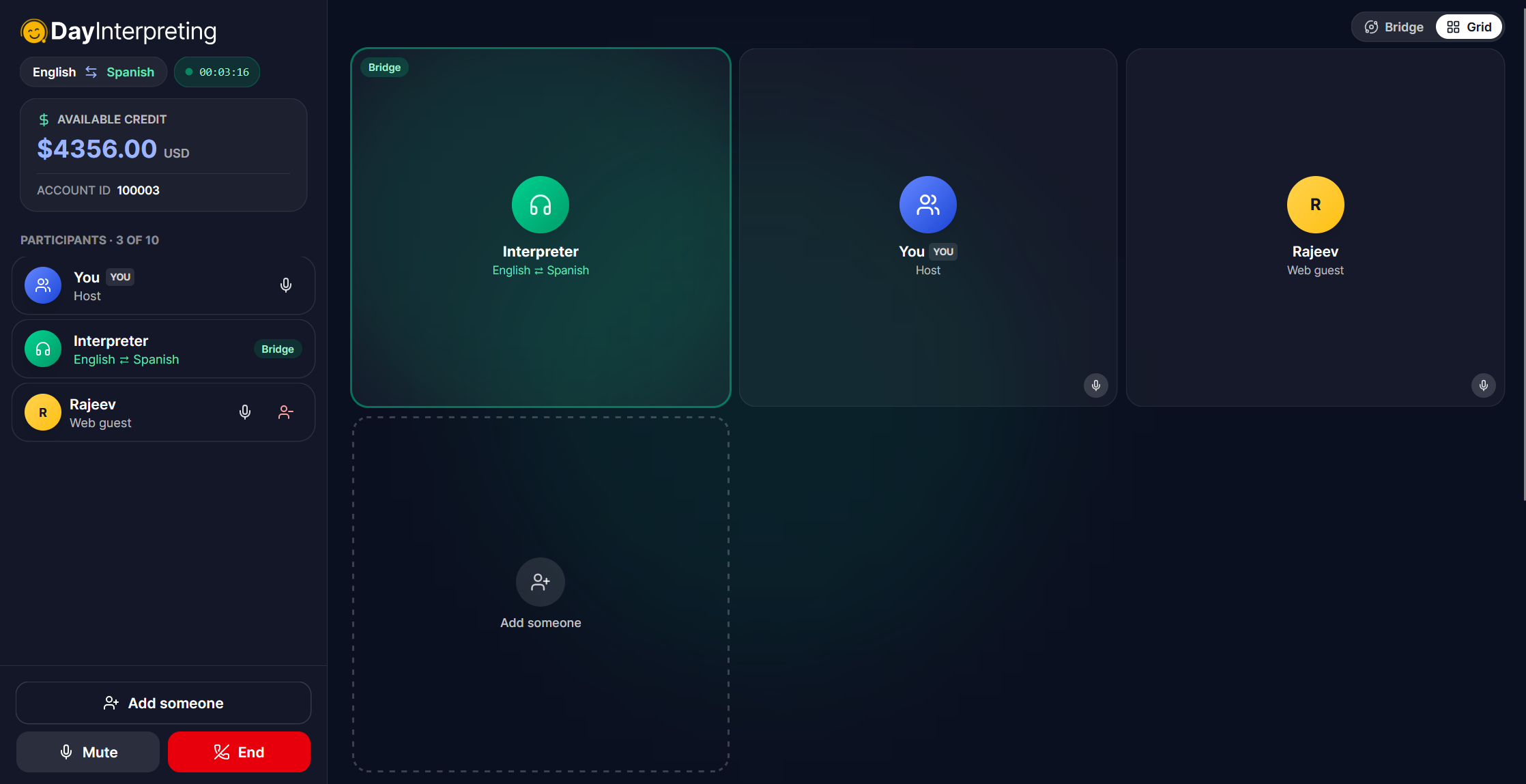
Bridge or GridOnce connected, the conference screen shows your available credit, your Account ID, and a live Participants list. Use Add someone to bring people in, and Mute / End to control the call. Switch the view anytime between Bridge and Grid (top-right).
Invite by join link
No phone number neededBest for participants anywhere in the world — they join from a web browser, so there’s no phone number or app required.
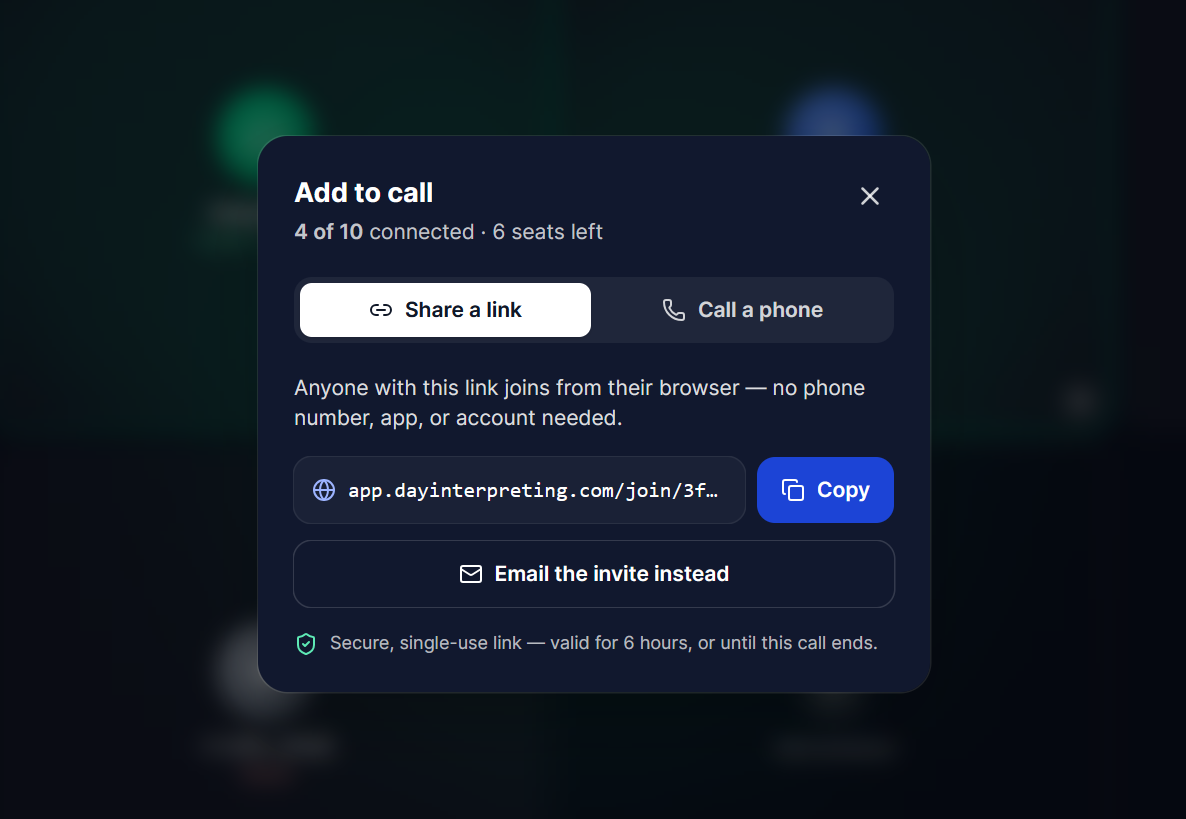
- Click Add someone to open the Add to call panel, then choose the Share a link tab.
- Click Create a join link, then Copy it.
- Send the link however you like. The person opens it, enters their name, and joins — they’ll appear on your screen as a Web guest.
Email the invite
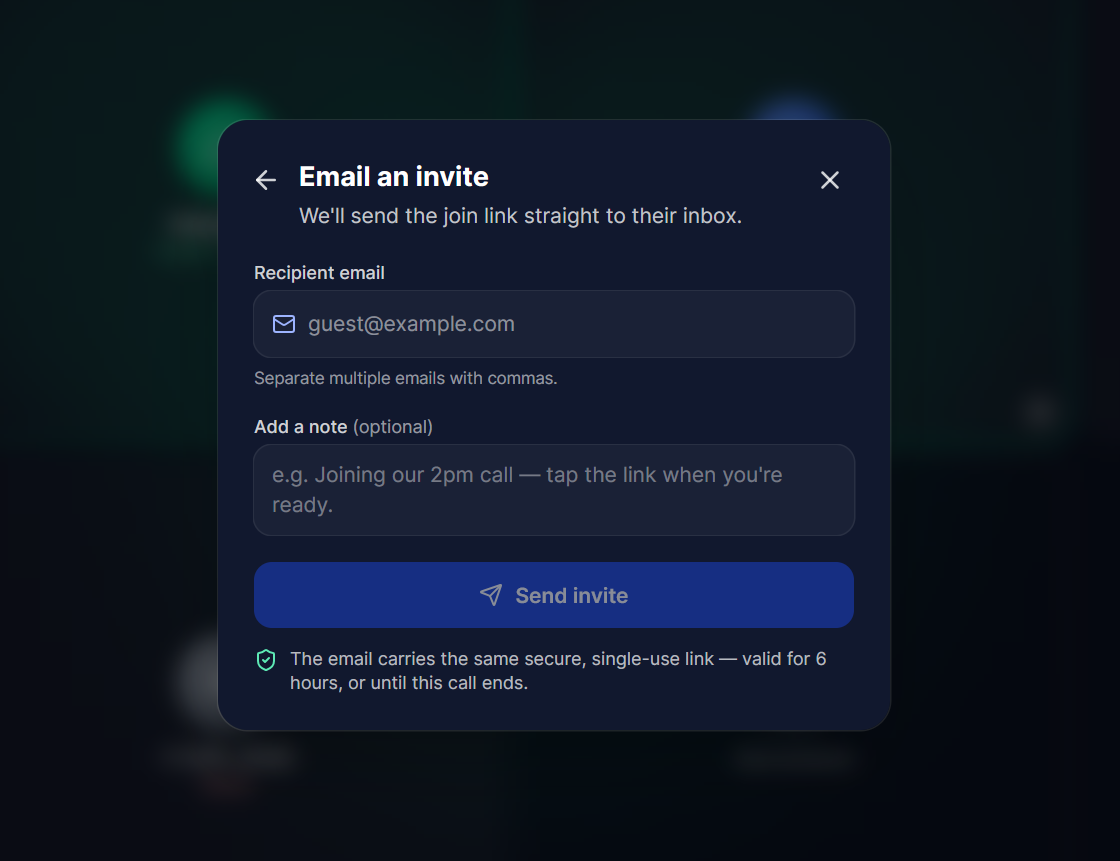
We send the linkPrefer we email it for you? Send the same join link straight to someone’s inbox.
- In the Add to call panel, click Email the invite instead.
- Enter the recipient’s email (separate several with commas), add an optional note, and click Send invite.
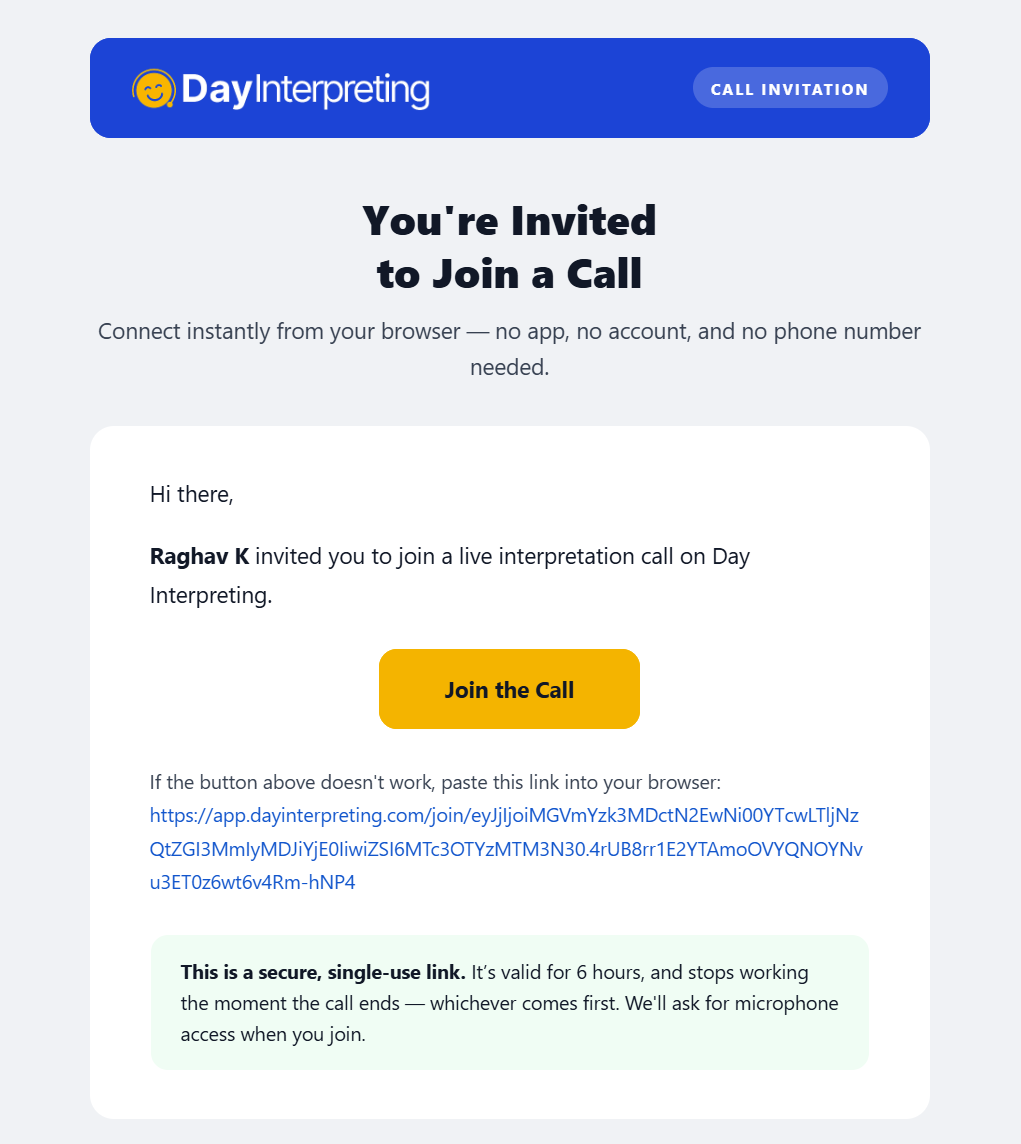
- They receive a branded invitation email with a Join the Call button that takes them straight to the join page.
Add by phone number
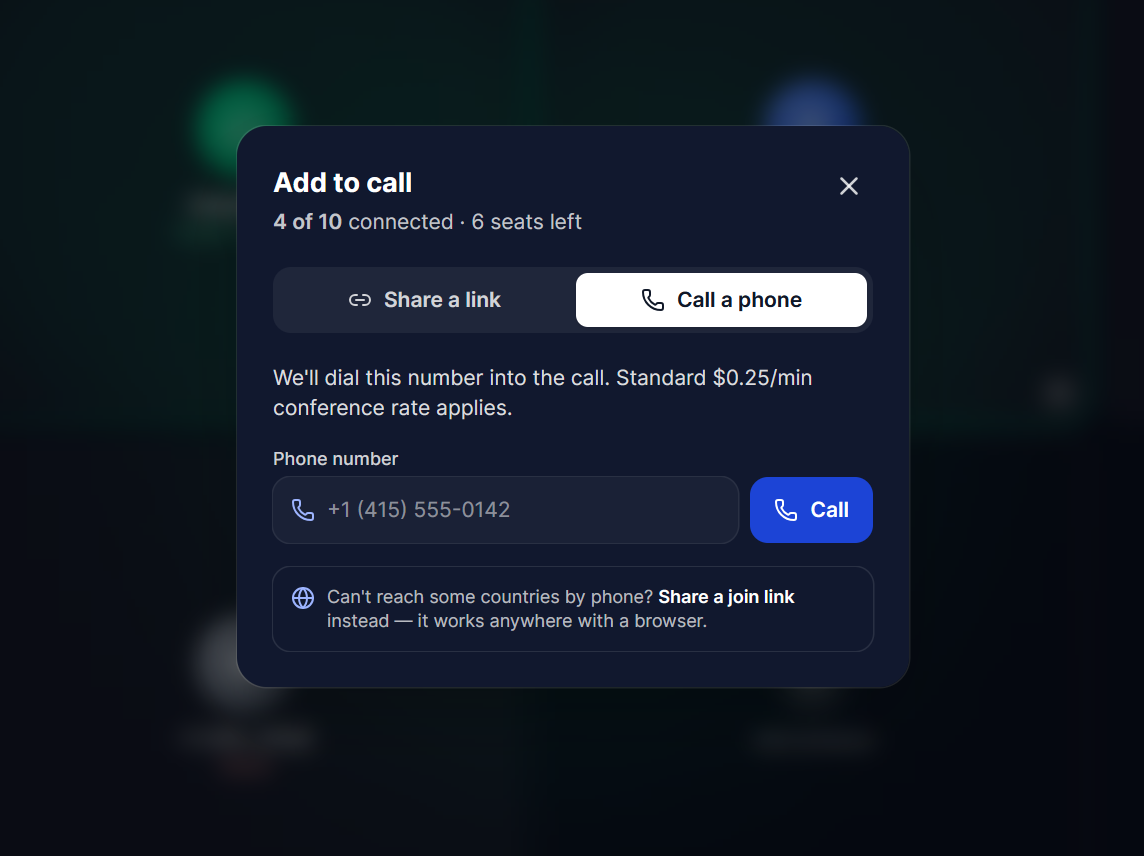
We dial them- In the Add to call panel, choose the Call a phone tab.
- Enter the person’s phone number (include the country code for international numbers) and click Call — we’ll dial them and connect them automatically.
What your guest sees
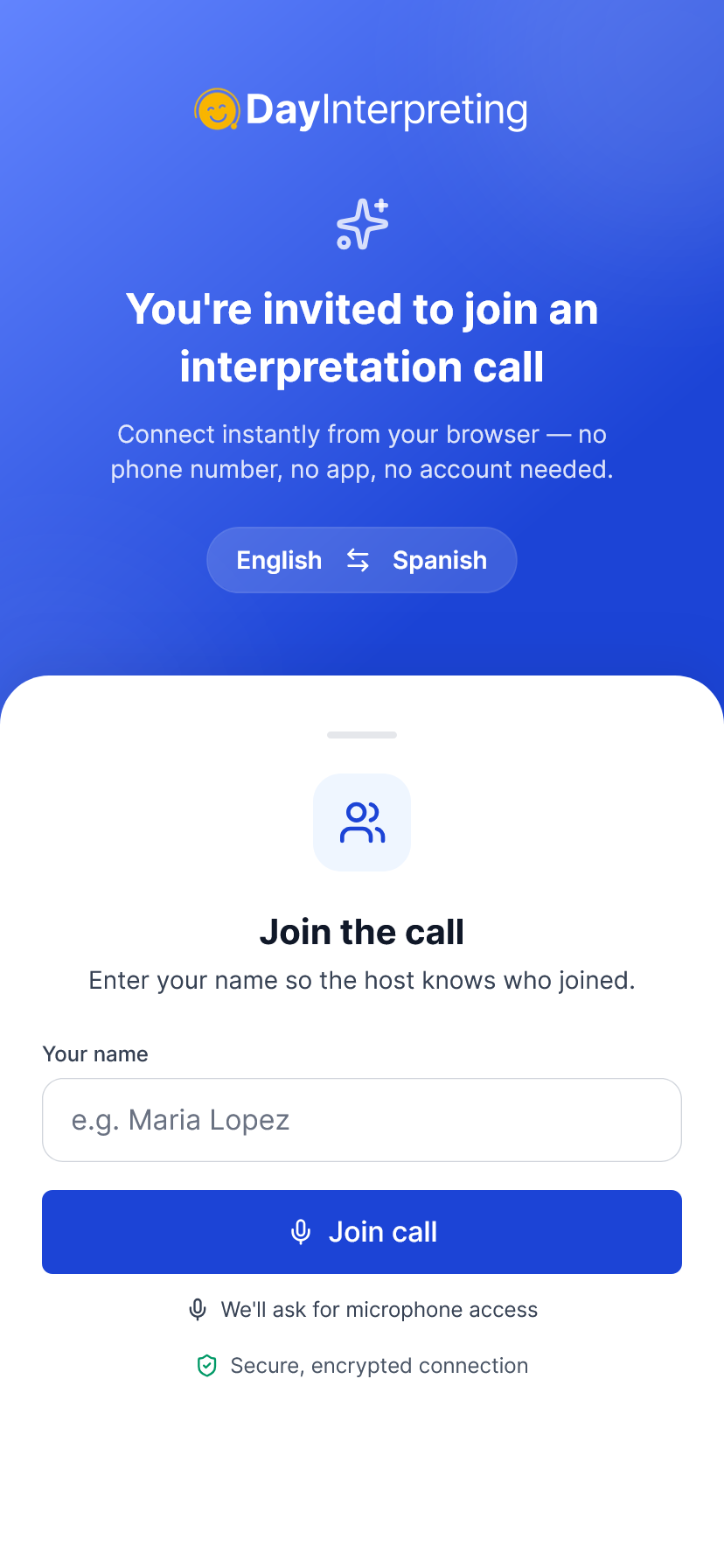
Just a name + JoinHowever you invite them, your guest lands on a simple join page. They enter their name, click Join call, allow microphone access, and they’re in. The moment they join, they show up on your conference screen by name, in both Bridge and Grid views.
- You add people once you’re connected — the Add someone button is on the conference screen after your interpreter joins.
- Up to 10 people can be on a call together (you, the interpreter, and everyone you add).
- The join link is valid for 6 hours, or until the call ends — whichever comes first. It’s single-use and can’t be reused for another call.
- You can switch between Bridge and Grid views at any time, and mute or remove any guest from the Participants list.
- A small 3rd-party rate is added on top of the interpreter rate while extra participants are connected.